See balances without opening the app, ask Siri, and get told when something needs you.
Widgets
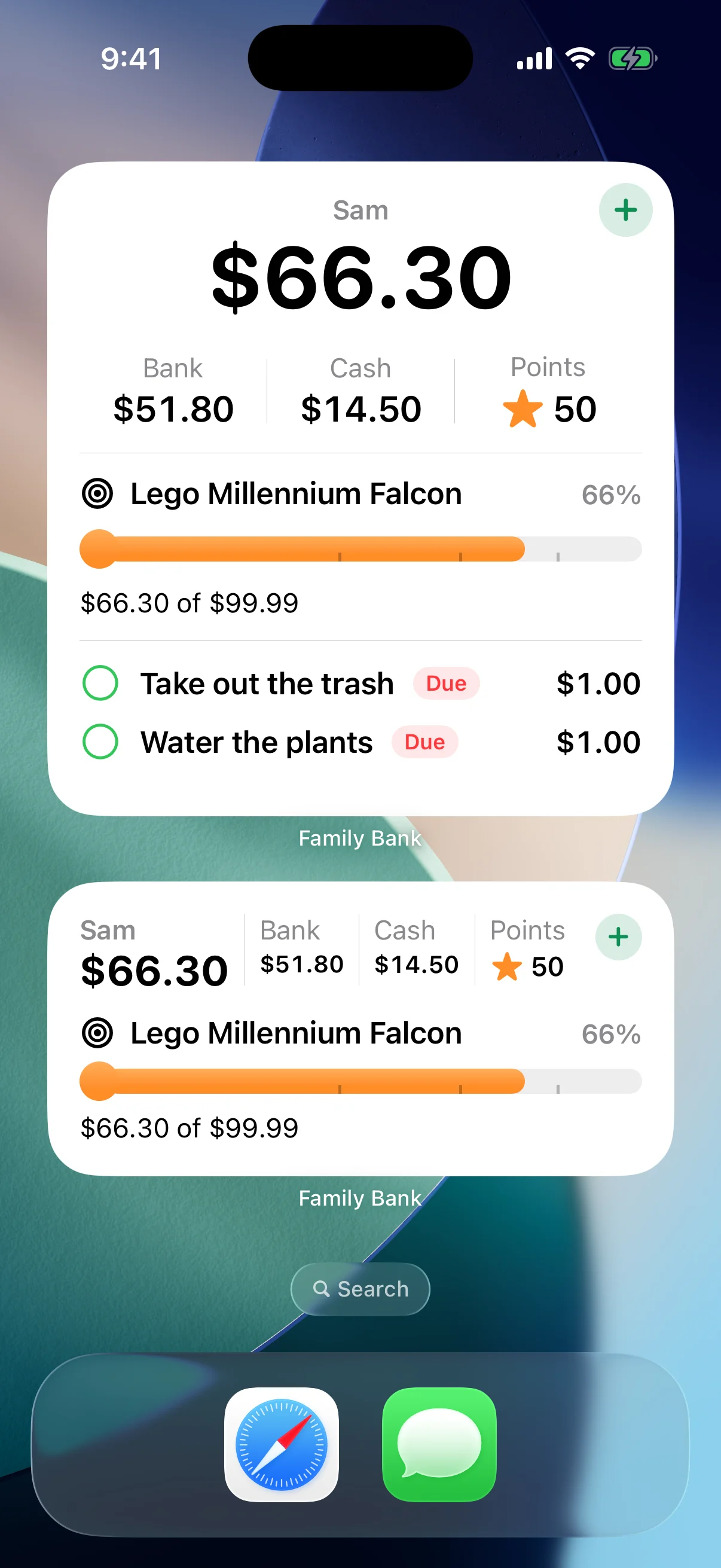
The Balance widget shows money in the bank and in cash, progress toward a savings goal, and, in the large size, chores to do. It comes in three sizes for the Home Screen and three for the Lock Screen.
- Touch and hold the Home Screen, then tap Edit → Add Widget.
- Find Family Bank and choose a size.
Kids always see their own money. Adults see every kid, or touch and hold the widget, tap Edit Widget, and choose one kid. An adult’s large widget also lists what’s waiting for review.
The + on a widget opens Family Bank ready to work: kids log a chore, and adults add money. On the Lock Screen, amounts stay hidden until the iPhone is unlocked.
Family Bank also adds two controls you can put in Control Center or on the Lock Screen: Log a Chore and Add Money.
Siri
Ask Siri on an unlocked iPhone:
- “What’s my balance in Family Bank?” Siri answers with the total, the bank, and the cash.
- “How many points do I have in Family Bank?” Use your family’s word for points, like stars.
- “Withdraw cash in Family Bank.” Kids ask for cash, and an adult approves it. Adults record it right away.
- “Add money to Sam in Family Bank.” Adults only.
Adults can name a kid, as in “What’s Sam’s balance in Family Bank?” These work in Shortcuts, too.
 Family Bank
Notifications
Family Bank sends a notification when something changes or needs you.
- For adults: a chore to check, a cash request, a reward request, a recurring expense that was skipped, and a locked profile.
- For kids: a chore, cash request, or reward approved or not, money an adult added or took out, a new award, and the reminders your family set up.
Tap one to go straight to it. Turn notifications on or off in the iOS Settings app. To change when kids get reminders, open Family → Family settings → Reminders.
On a shared device, notifications go to its default profile only. See Shared devices.