One device can hold the whole family. Each person opens their own profile, and adults lock theirs with a PIN.
Add multiple profiles to one device
Kids don’t need their own phone or Apple Account. An adult adds them, and the device keeps their sign-in.
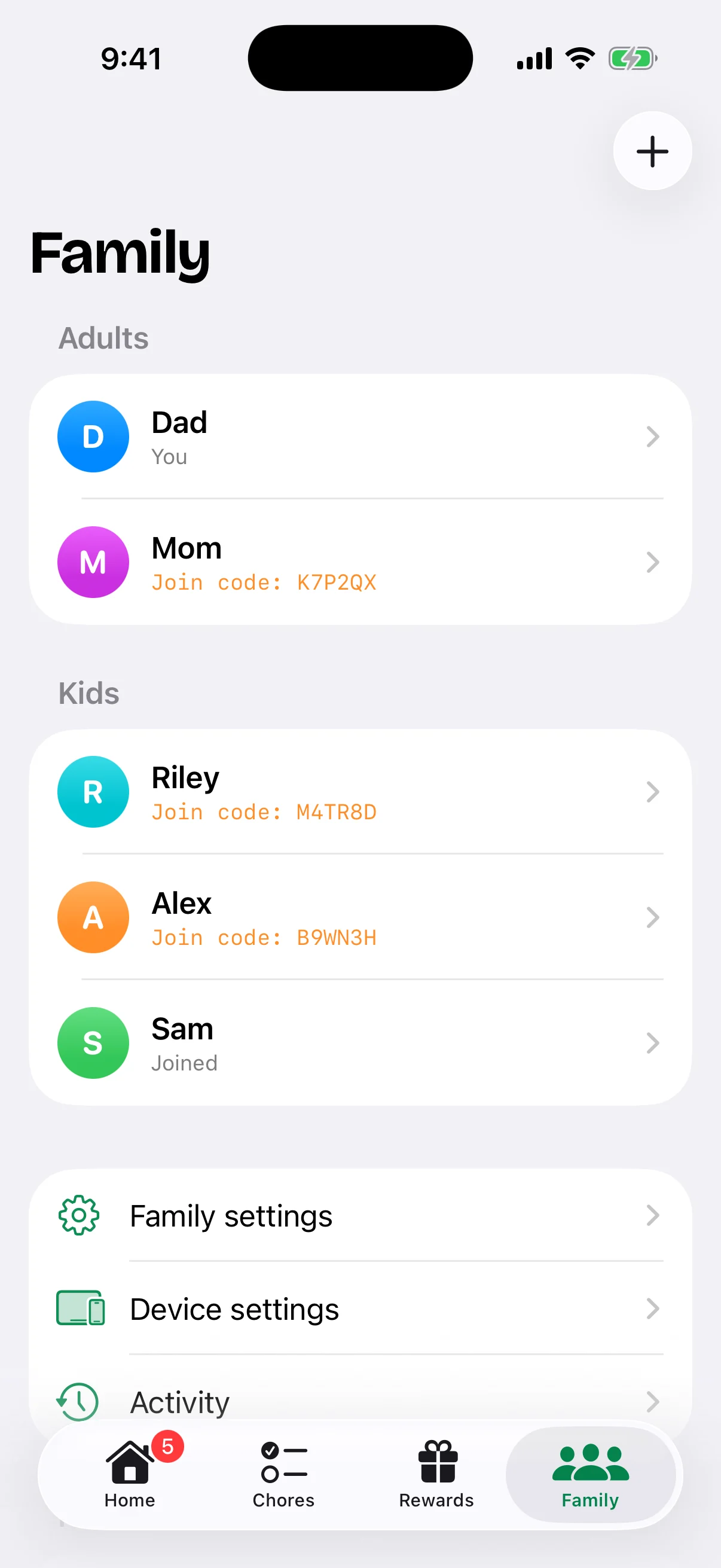
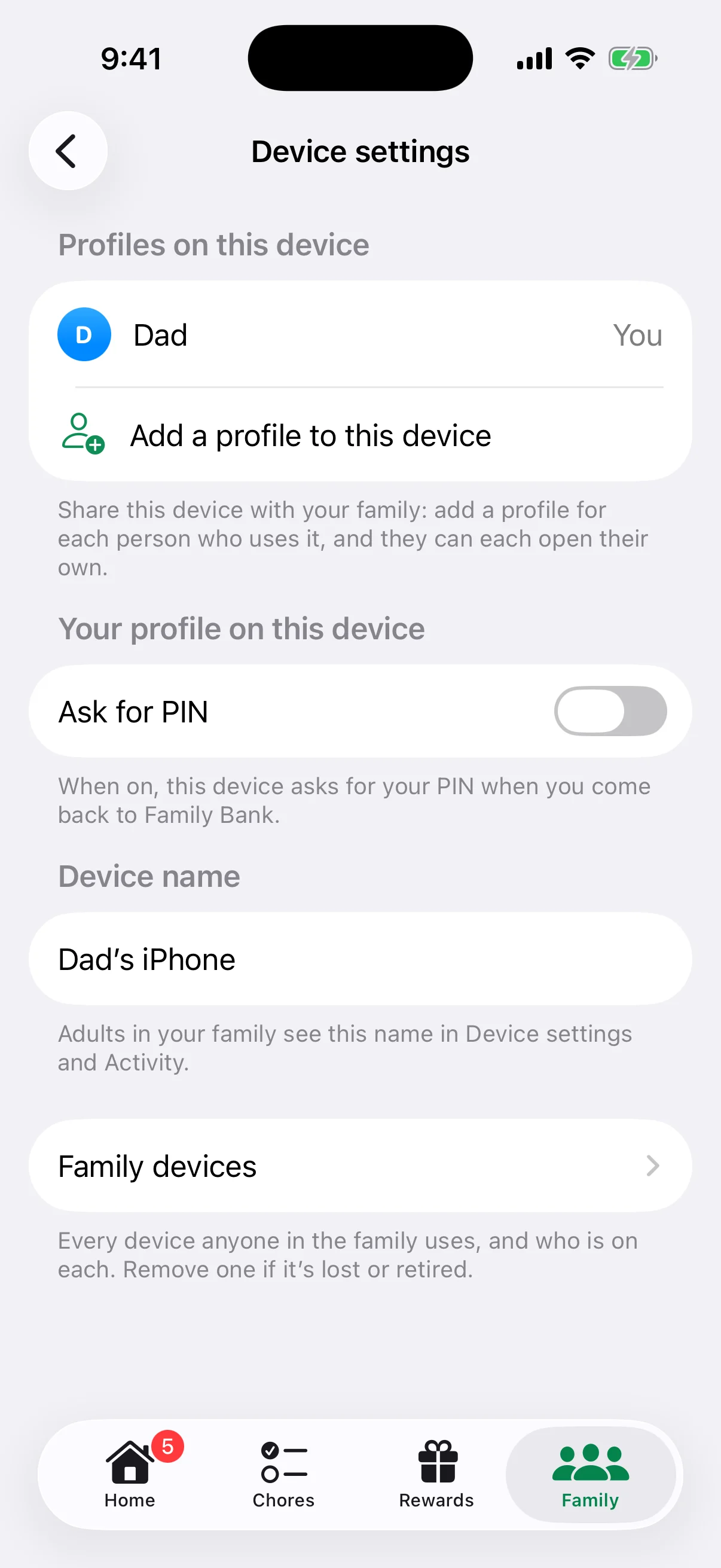
- Open Family → Device settings → Add a profile to this device.
- If you don’t have a PIN yet, set one. Adults on a shared device need one.
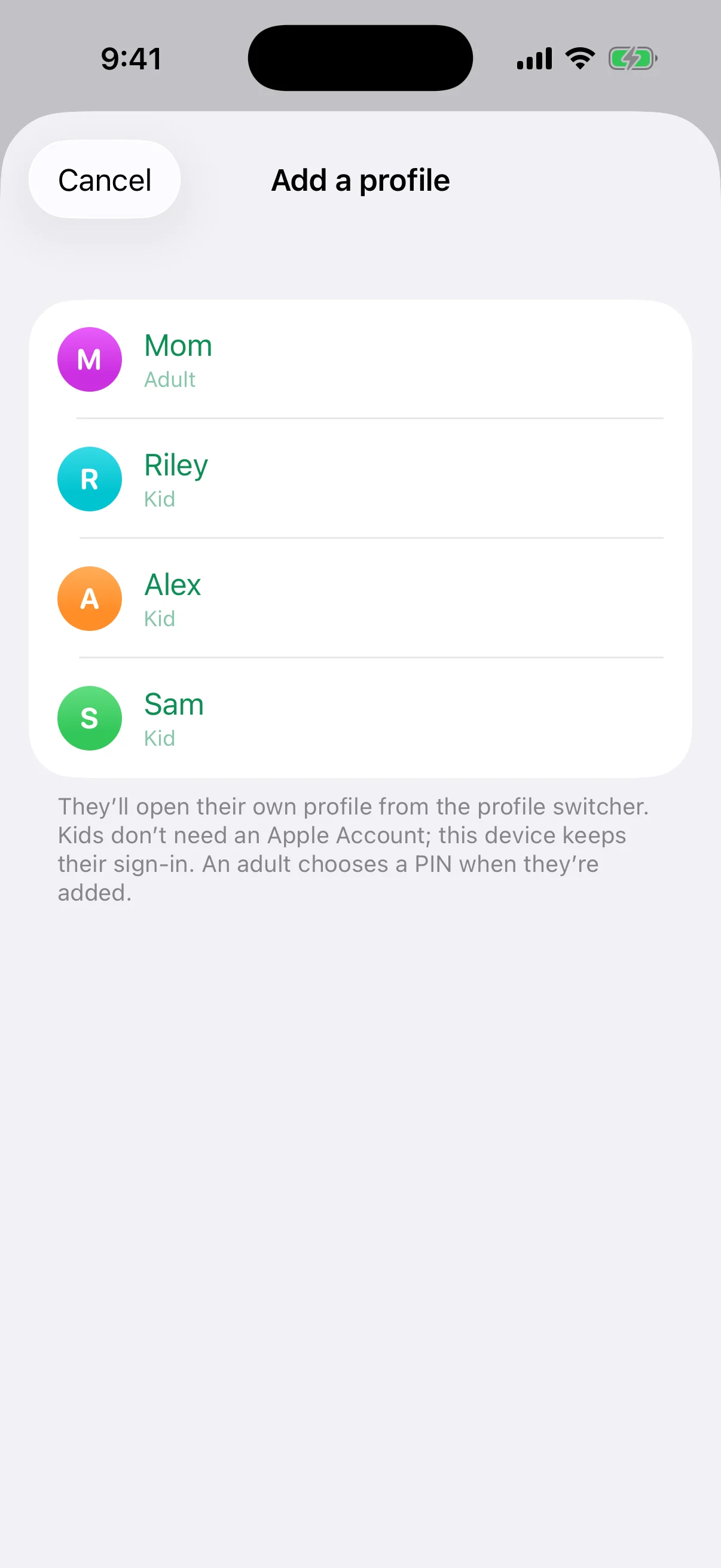
- Choose who to add.
A kid is added right away. For an adult, hand them the device so they can choose their own PIN.
Switch profiles
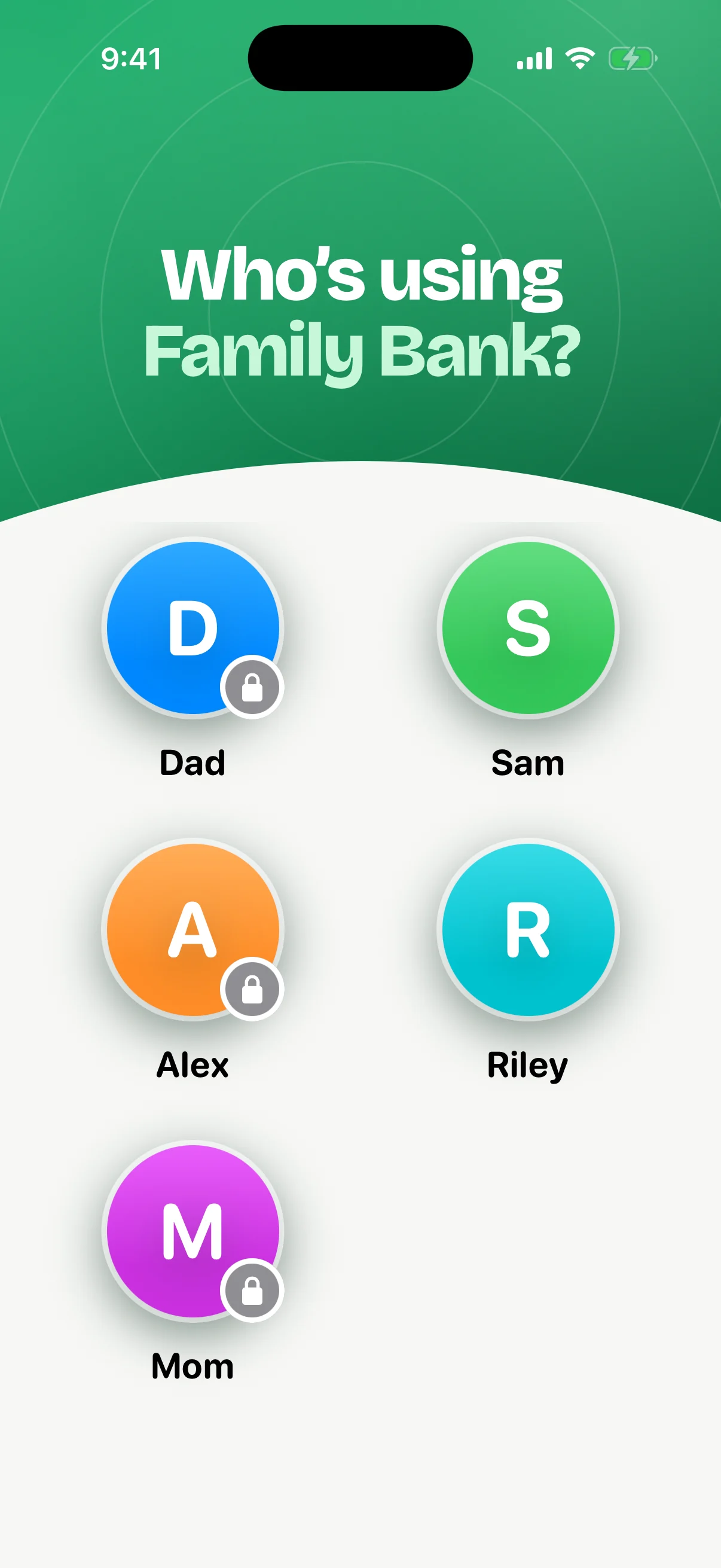
When multiple profiles are added to one device, Family Bank launches to the profile switcher. Tap your name. A lock means the profile asks for a PIN.
When you’re done, tap the Switch profile button at the top of Home, and the next person picks their name. Every profile locks again.
In Device settings, Return to switcher sets when Family Bank goes back to the list on its own: Always, After 2 minutes away, or Never.
PINs
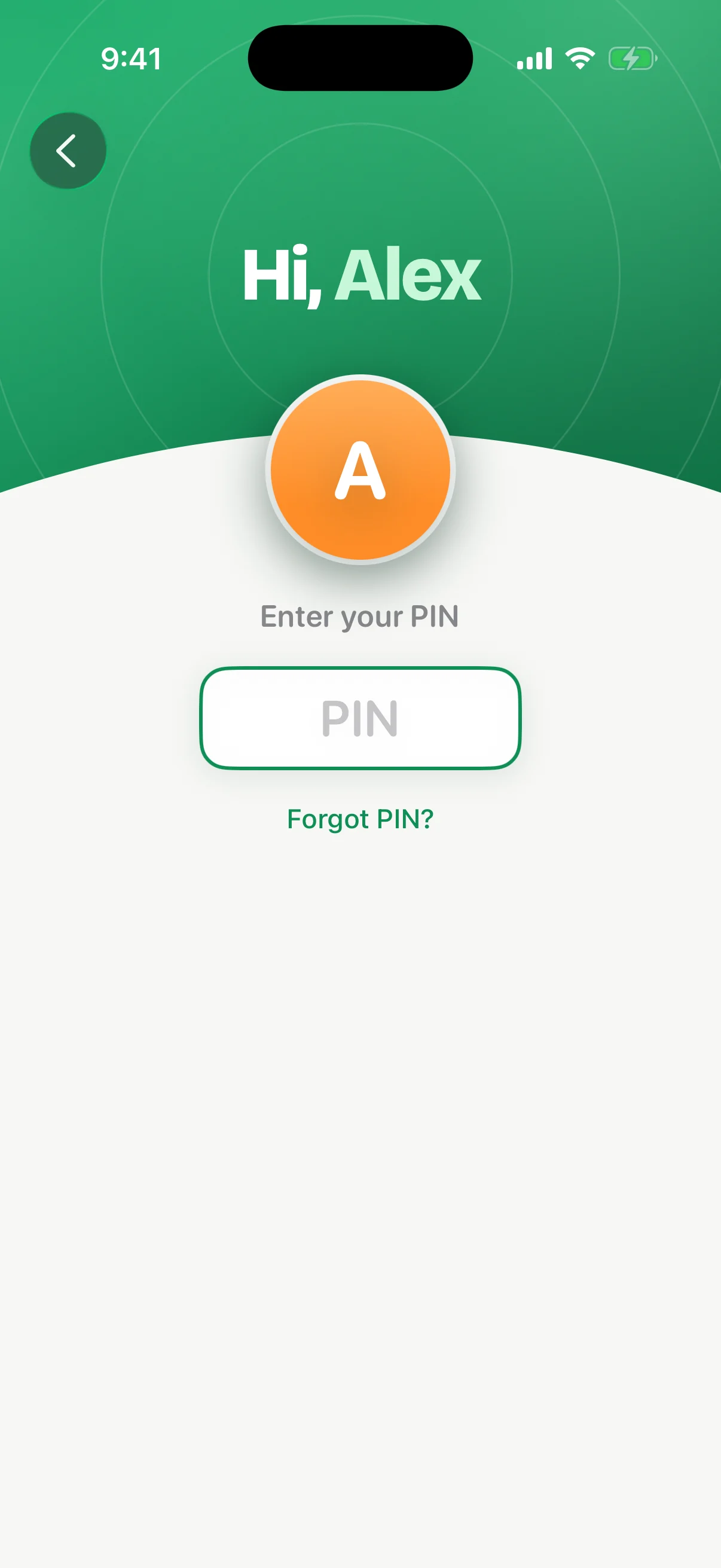
A PIN is four digits. Adults on a shared device always have one. For kids it’s up to your family.
- Your own PIN: adults open Family → their name → PIN. Kids tap their own name in the Family tab.
- A kid’s PIN: an adult can set or reset it from Family → the kid → PIN.
- Another adult’s PIN: an adult can remove it. That adult gets a notification and chooses a new one.
Nobody can see a PIN, not even other adults. Five wrong tries lock the profile for five minutes on that device, and the adults are told.
Forgot a PIN
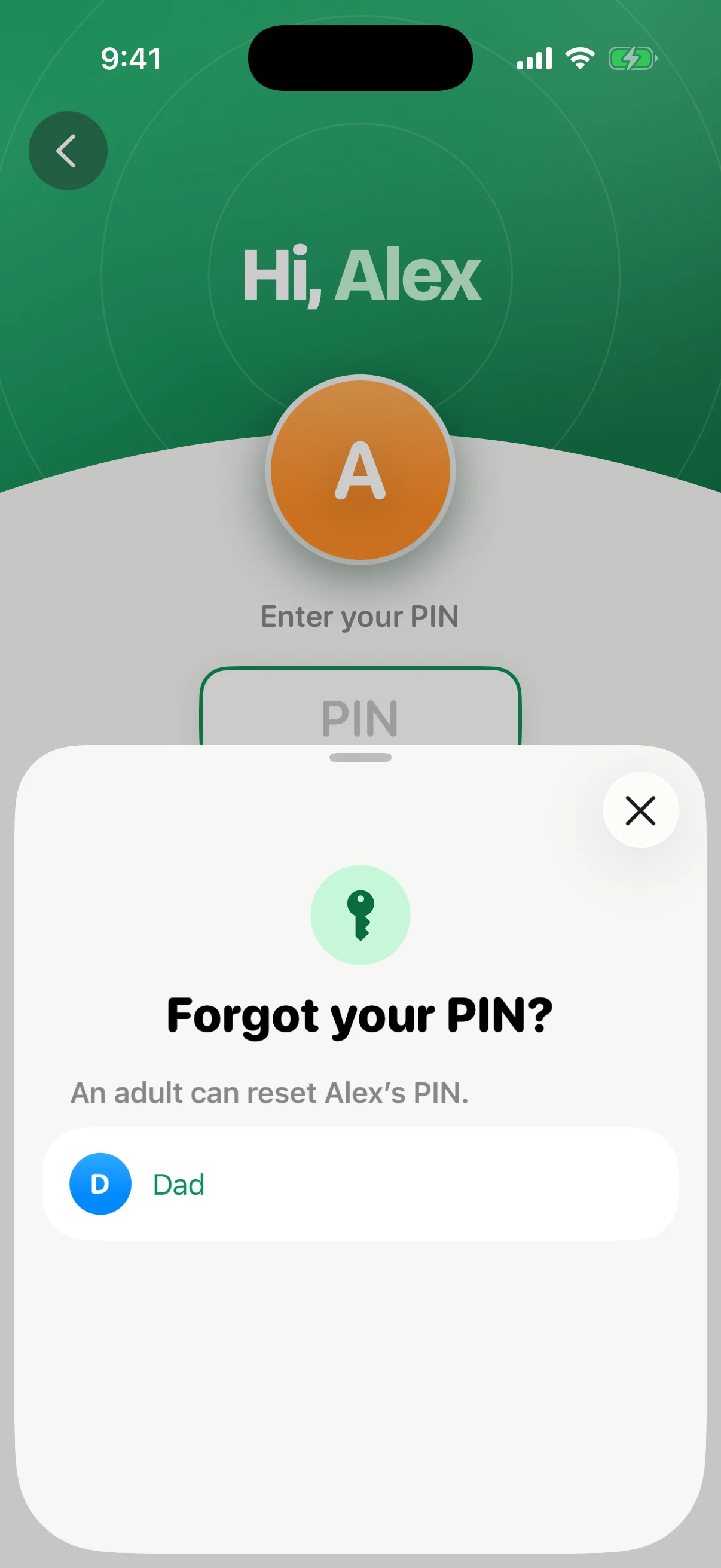
Tap Forgot PIN? on the PIN screen.
- A profile added to this device: choose an adult who’s here, have them enter their PIN, then choose a new PIN.
- A profile signed in with Apple: sign in with Apple again, then choose a new PIN.
A new PIN also lifts a lock from too many wrong tries.
Default profile and notifications
On a shared device, Default profile in Device settings sets who Family Bank opens to. That person’s notifications come to this device. With no default, it opens to the profile switcher and gets no notifications.
Remove someone
- From this device: in Device settings, swipe the person and tap Remove. They can still use Family Bank on their own device.
- Yourself: on a shared device, tap Remove me from this device at the bottom of the Family tab.
- From a lost or old device: open Device settings → Family devices, which lists every device in the family and who’s on each, and tap Remove this device.