Approve what the kids send, add money, and keep the books. Here’s where each part lives.
Home
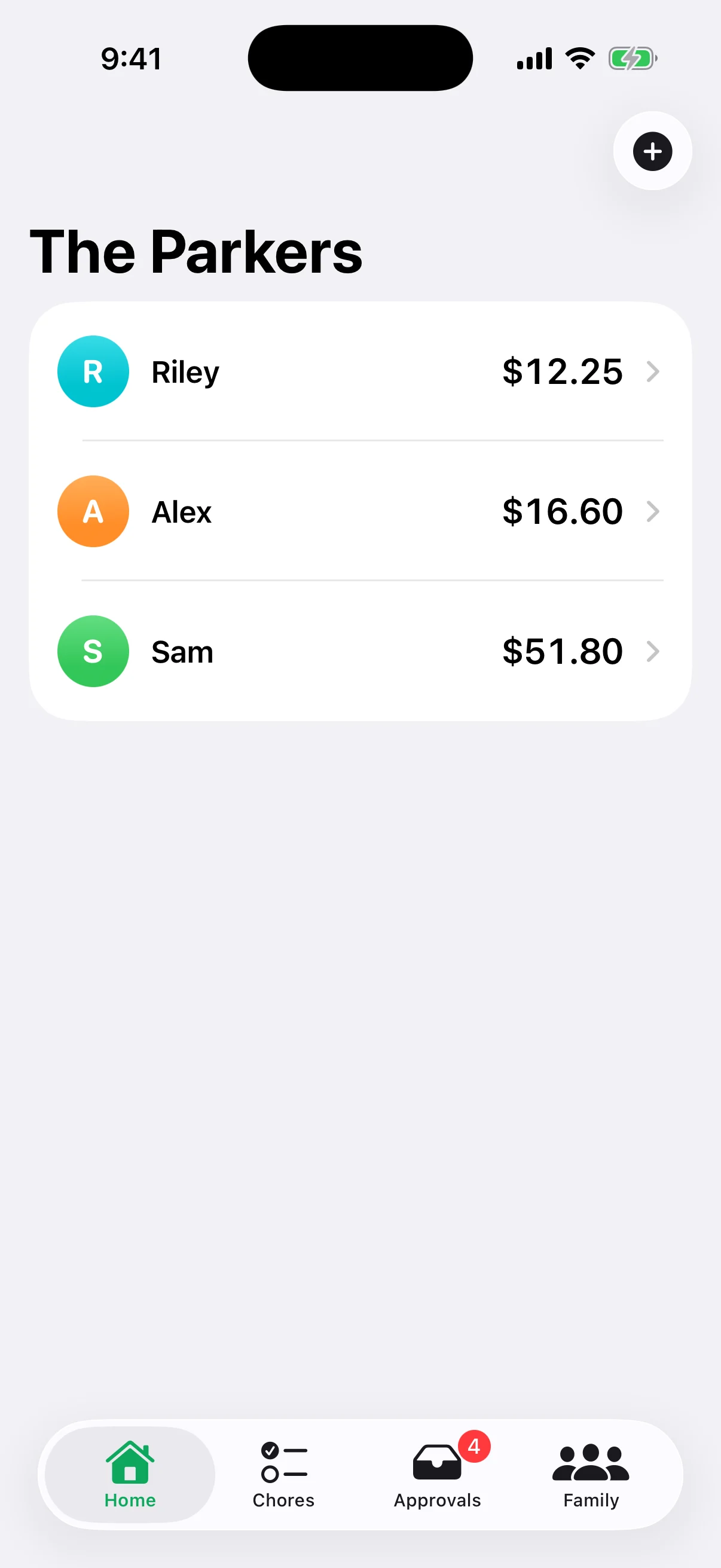
Home lists each kid with their bank balance, and their points if your family uses them. Tap a kid to open their page.
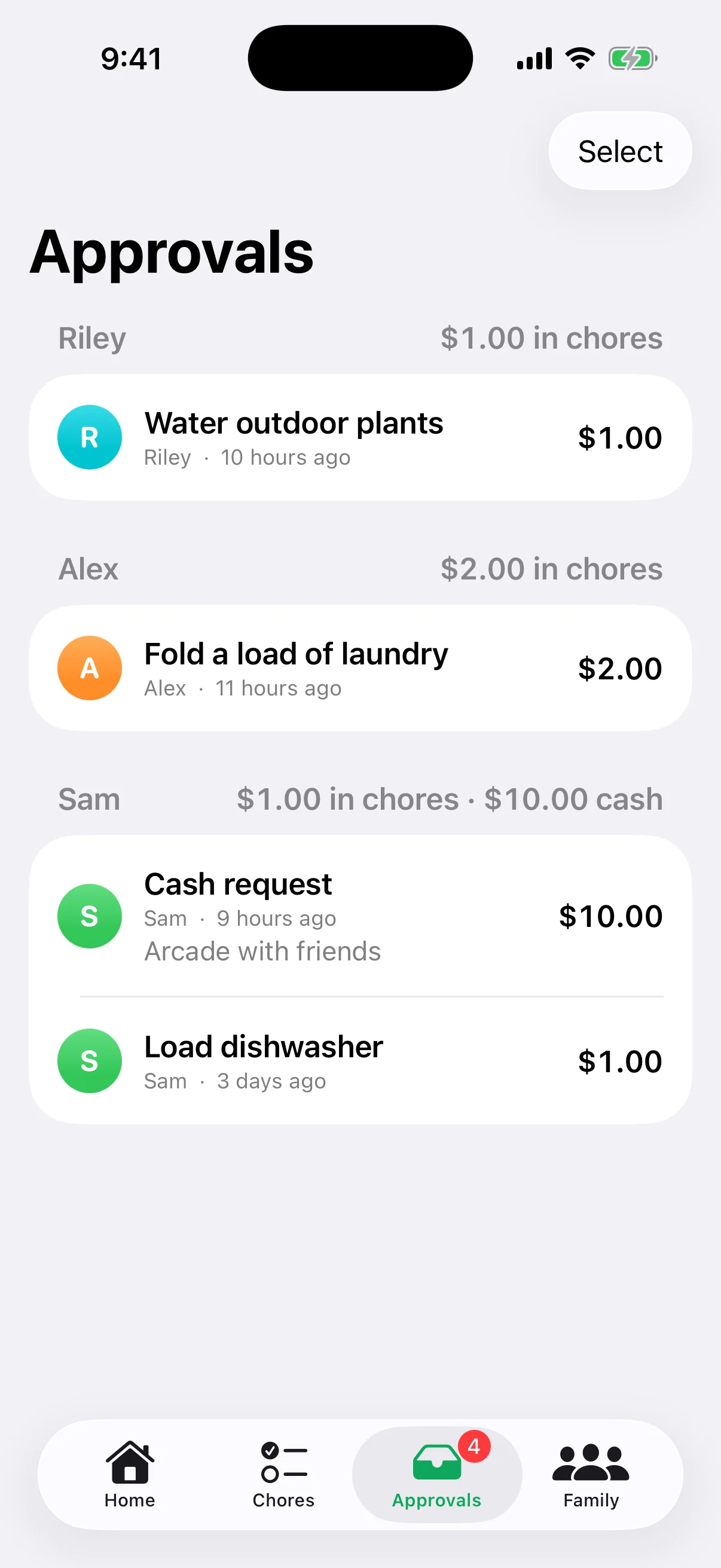
Waiting for you shows what the kids sent: chores to check, cash requests, and reward requests, oldest first. Tap one to review it, or swipe right to approve and left to reject. Review all opens Approvals, with everything grouped by kid.
Approve a chore
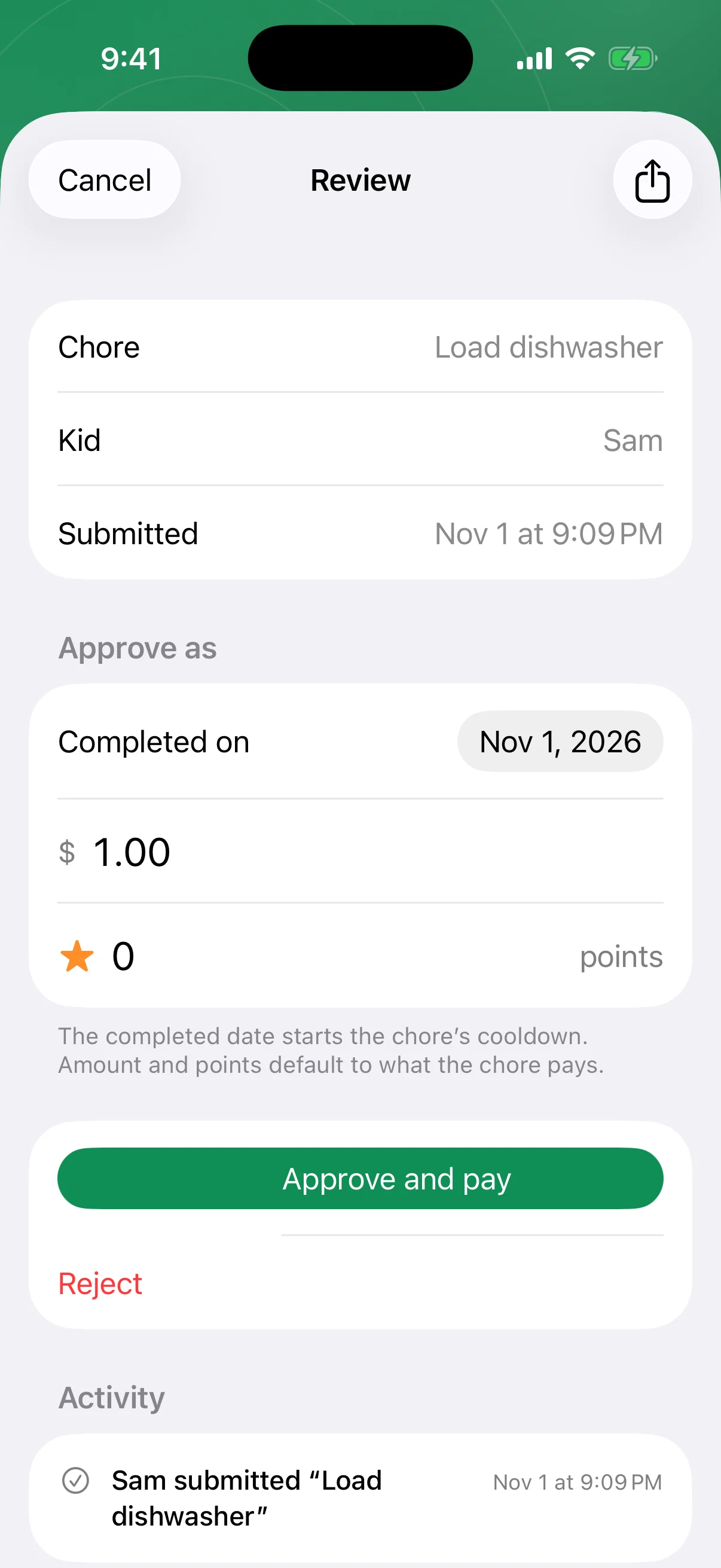
When a kid sends a chore, you choose what it pays.
- Tap the chore under Waiting for you.
- Check Completed on, the amount, and any points. They start at the day it was sent and what the chore pays.
- Tap Approve and pay, or Reject.
The completed date starts the chore’s wait before it can be done again. The kid gets a notification either way.
To approve several at once, open Approvals, tap Select, choose them, and tap Approve. Each one uses the day it was sent and what the chore pays.
Approve a cash request
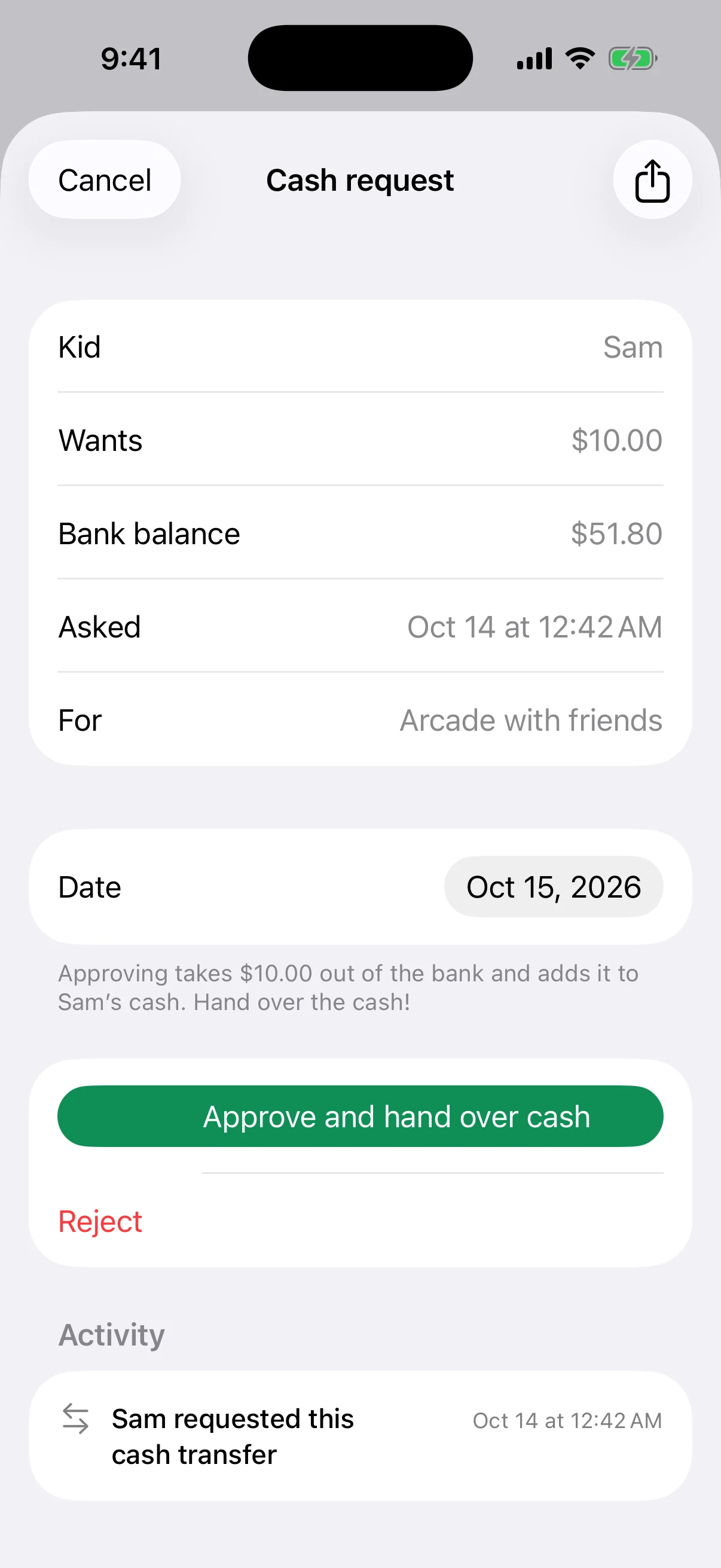
A kid asks to take money out of the bank as cash, and says what it’s for.
- Tap the cash request under Waiting for you.
- Tap Approve and hand over cash, or Reject.
Approving takes the amount out of their bank and adds it to their cash, so hand over the cash. The kid gets a notification either way.
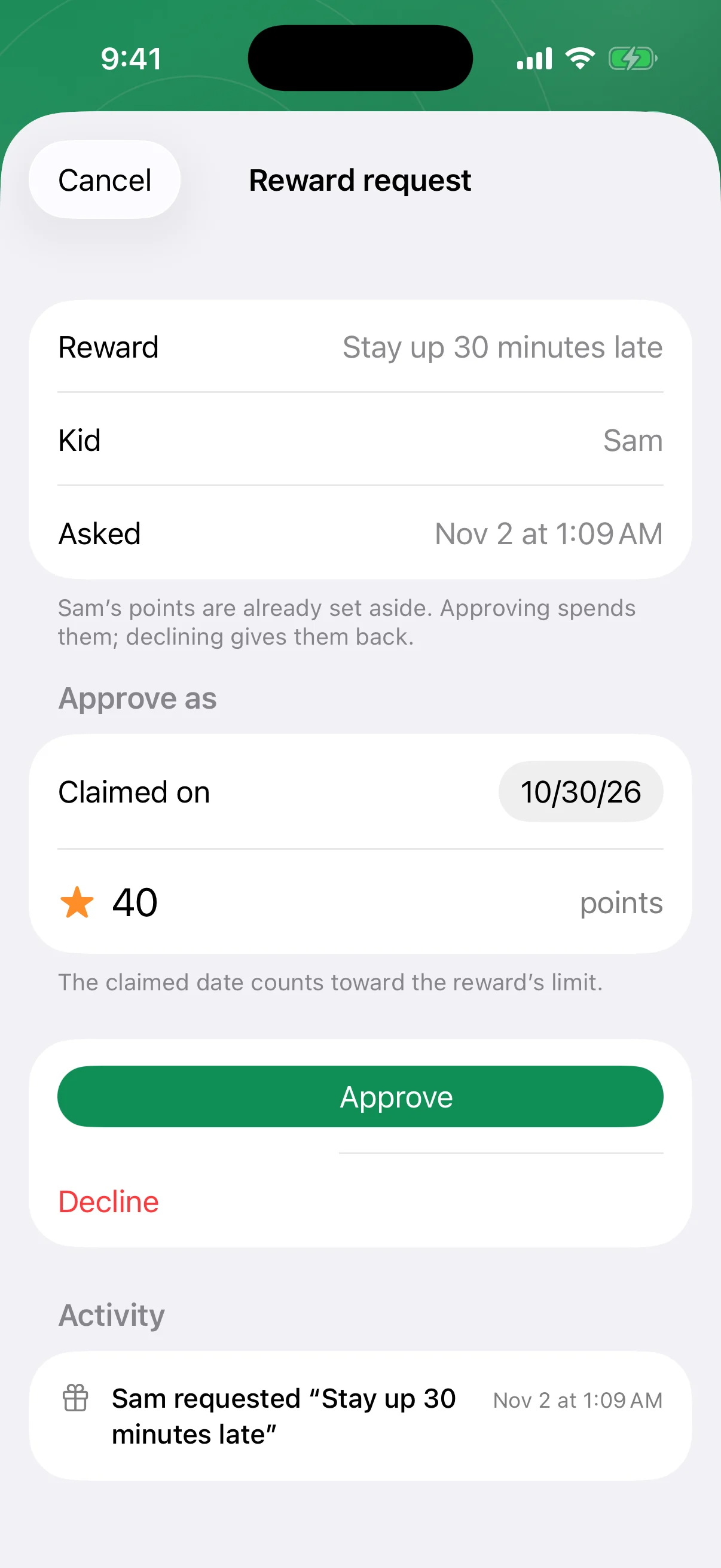
Approve a reward request
If your family uses points, a kid’s points are set aside when they claim a reward.
- Tap the reward request under Waiting for you.
- Change the claimed date or price if you need to, then tap Approve, or Decline. You can edit an approved request later.
Approving spends the points, and declining gives them back.
Quick add
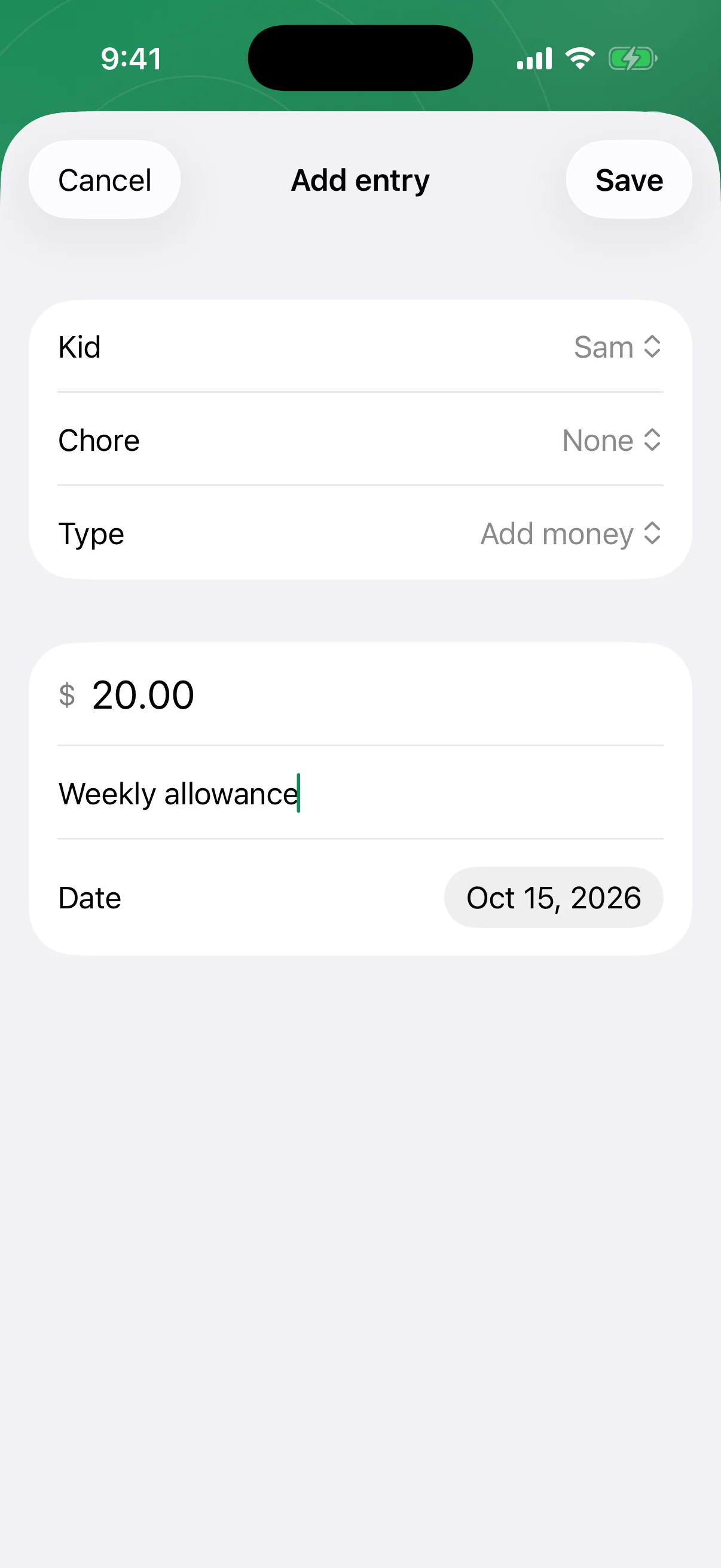
Use + on Home, or on a kid’s page, for allowance, gifts, and anything else that isn’t a chore the kid sent.
- Tap +.
- Choose the kid. To pay for a chore they did, choose the chore too. It’s logged as done and approved.
- Without a chore, choose the type:
- Add money: adds to their bank balance, like an allowance or a gift. No cash changes hands.
- Take money: takes from their bank balance, like a purchase you paid for.
- Withdraw cash: moves money from their bank to their cash, for when you hand them bills or coins.
- Deposit cash: moves money from their cash to their bank, for when they hand you bills or coins to keep.
- Enter the amount, what it’s for, and the date, then tap Save.
A kid’s page
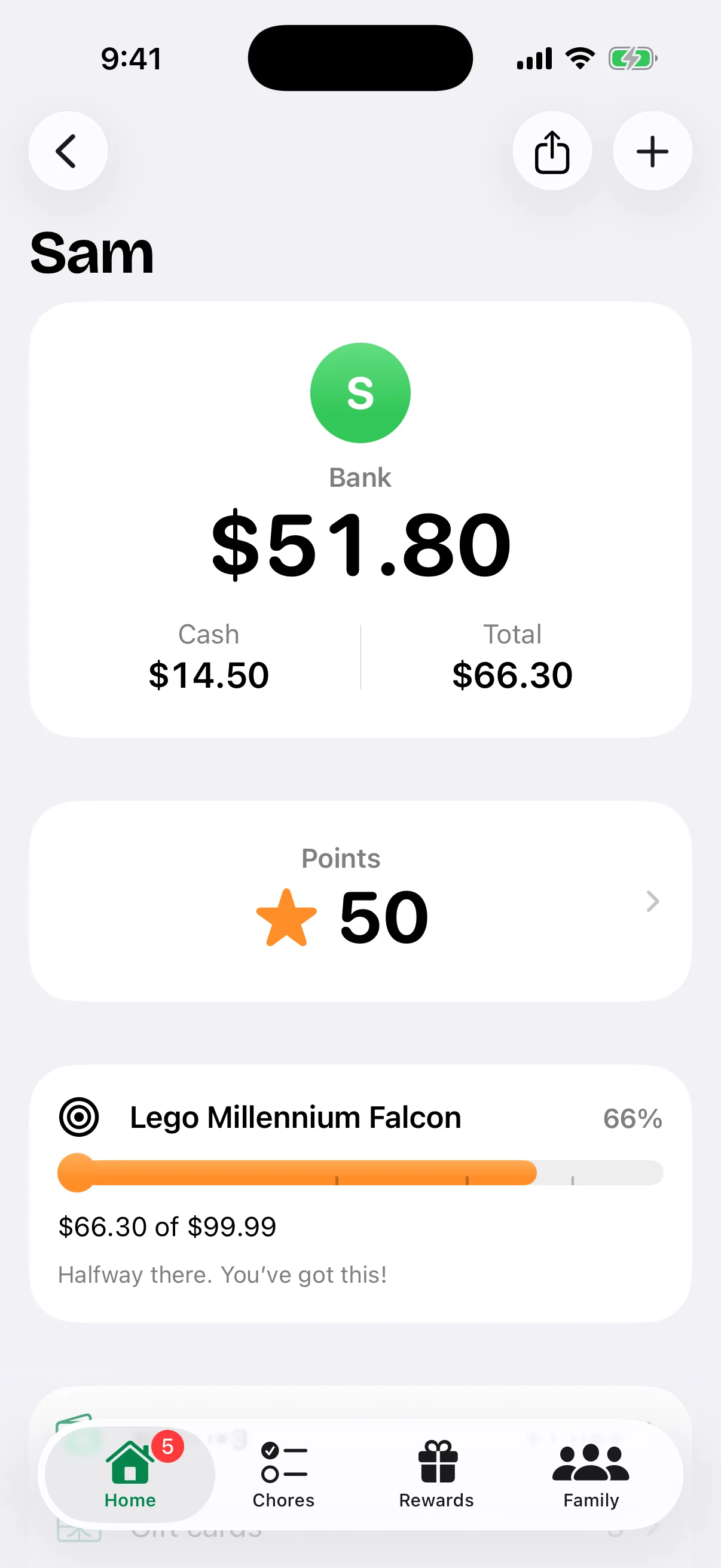
Tap a kid on Home to see their bank, cash, and total, their points, their savings goal, their cash log, gift cards, and recurring expenses, and their history.
- Fix an entry: tap it in History to change the amount, note, or date. It’s marked Edited.
- Undo an entry: swipe it and tap Void. It stays in the history but no longer counts. Swipe again to restore it.
Entries from chores, recurring expenses, and cash requests are set by where they came from. You can void them, but not change them.
Activity
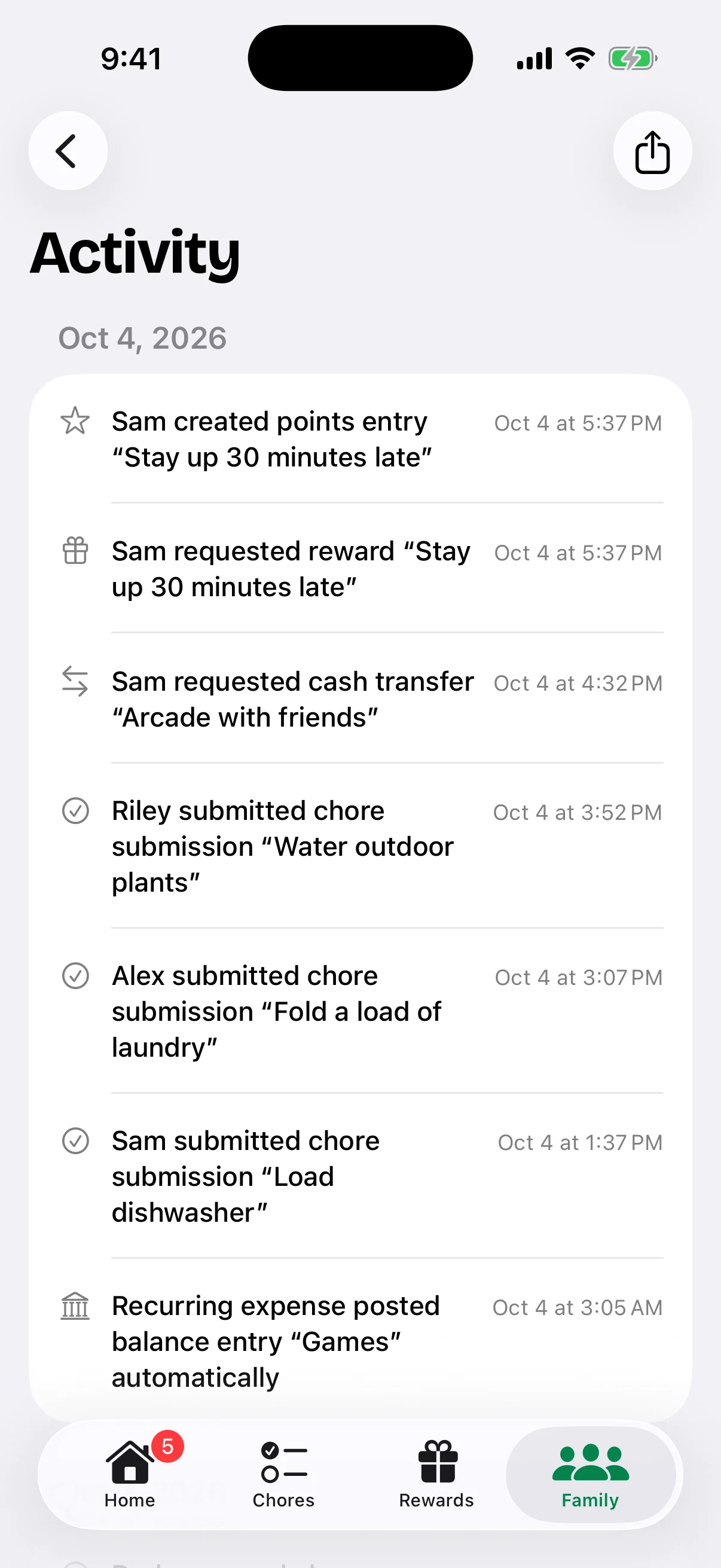
Family → Activity lists every change anyone made: who did what, to what, and when, with the old and new values. Tap a row to open what it’s about. Each kid’s awards show up here too.
Family stats
Family → Family stats shows what your family has logged since it started: chores, bank and cash entries, rewards claimed, and awards earned. The chart shows the last 30 days. Drag across it to read a day. Each kid gets a summary line below that. Only adults can see this screen.