Download the app, start your family, and invite everyone in it. You can add people any time after, too.
Download the app
Family Bank is an iPhone app, for iOS 26 or later. Each adult and kid with their own iPhone downloads it from the App Store.
Coming soon to the App Store
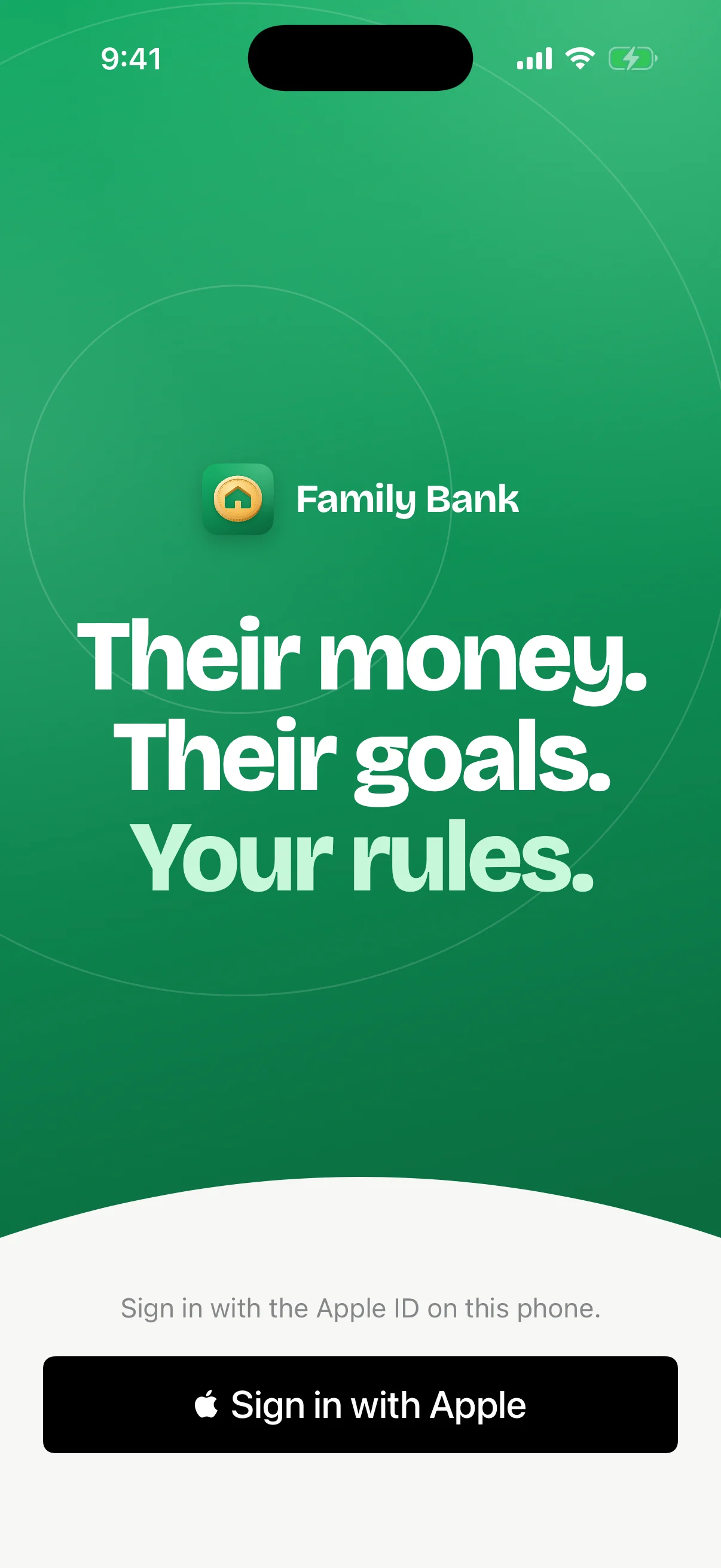
Sign in
Family Bank signs you in with Apple. It gets an anonymous ID from Apple and nothing else: no email, no full name, and no new password.
- Open Family Bank.
- Tap Sign in with Apple, then confirm with Face ID or your passcode.
The first time you sign in on a device, Family Bank asks you to name it, like “The Parkers’ iPhone”. Adults in your family see the name in Device settings and Activity.
Start a family
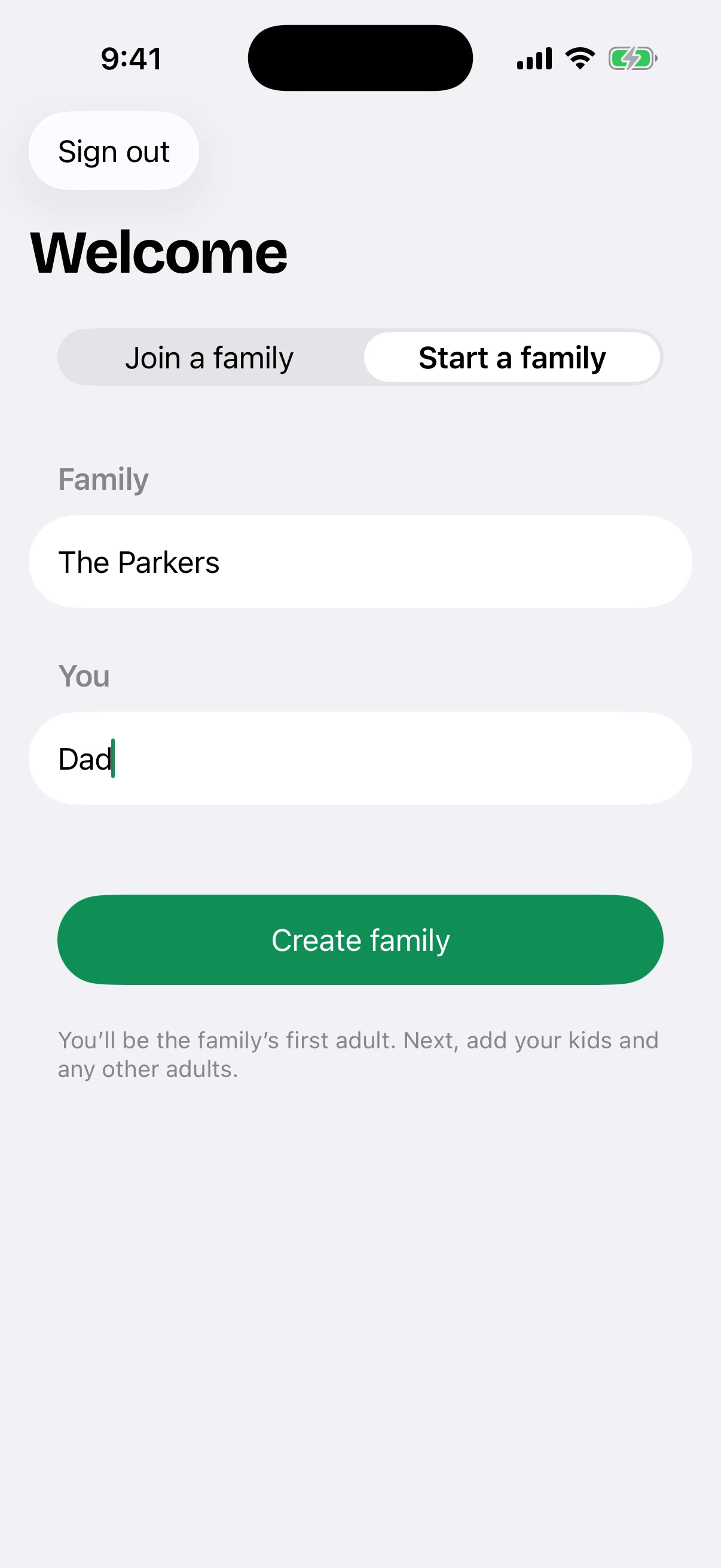
The first adult starts the family, and everyone else joins it.
- Choose Start a family.
- Enter your family’s name, like The Parkers.
- Enter the name your family calls you, like Dad or Mom. It’s the only name Family Bank keeps for you.
- Tap Create family.
You’re the family’s first adult. Next, add the rest of your family.
Add the people in your family
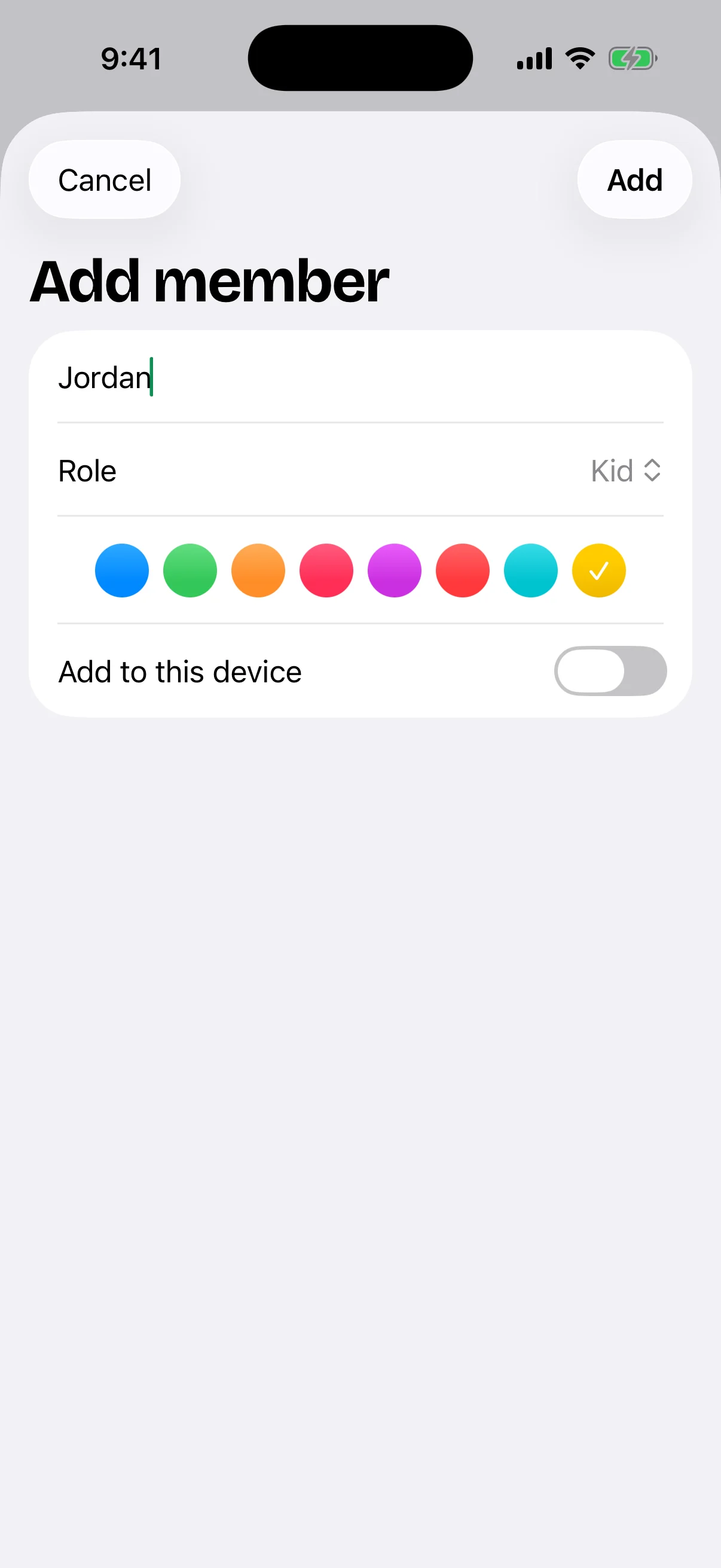
Add each adult and kid who’ll use Family Bank, including a kid who doesn’t have a phone yet.
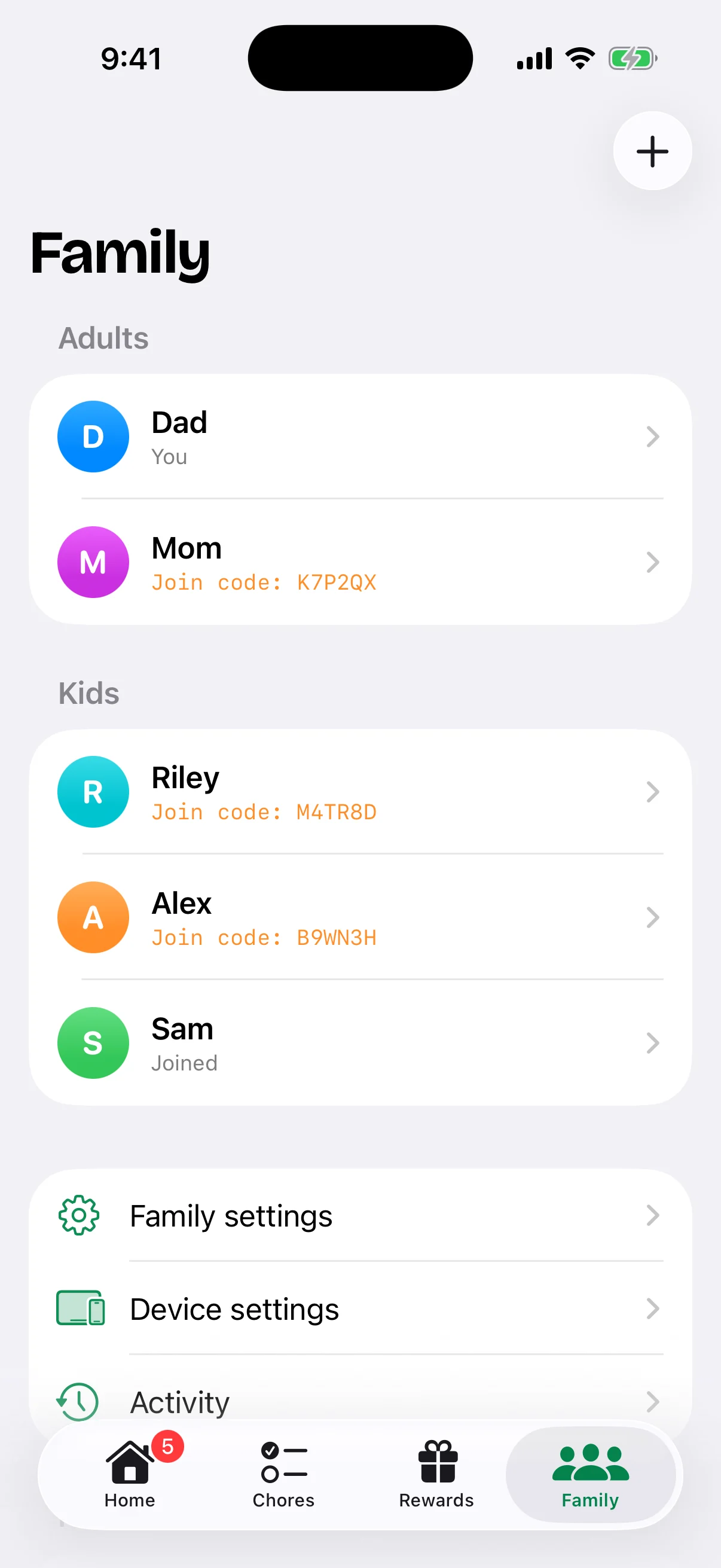
- Open the Family tab and tap +.
- Enter their name, choose Kid or Adult, and pick a color.
- Tap Add.
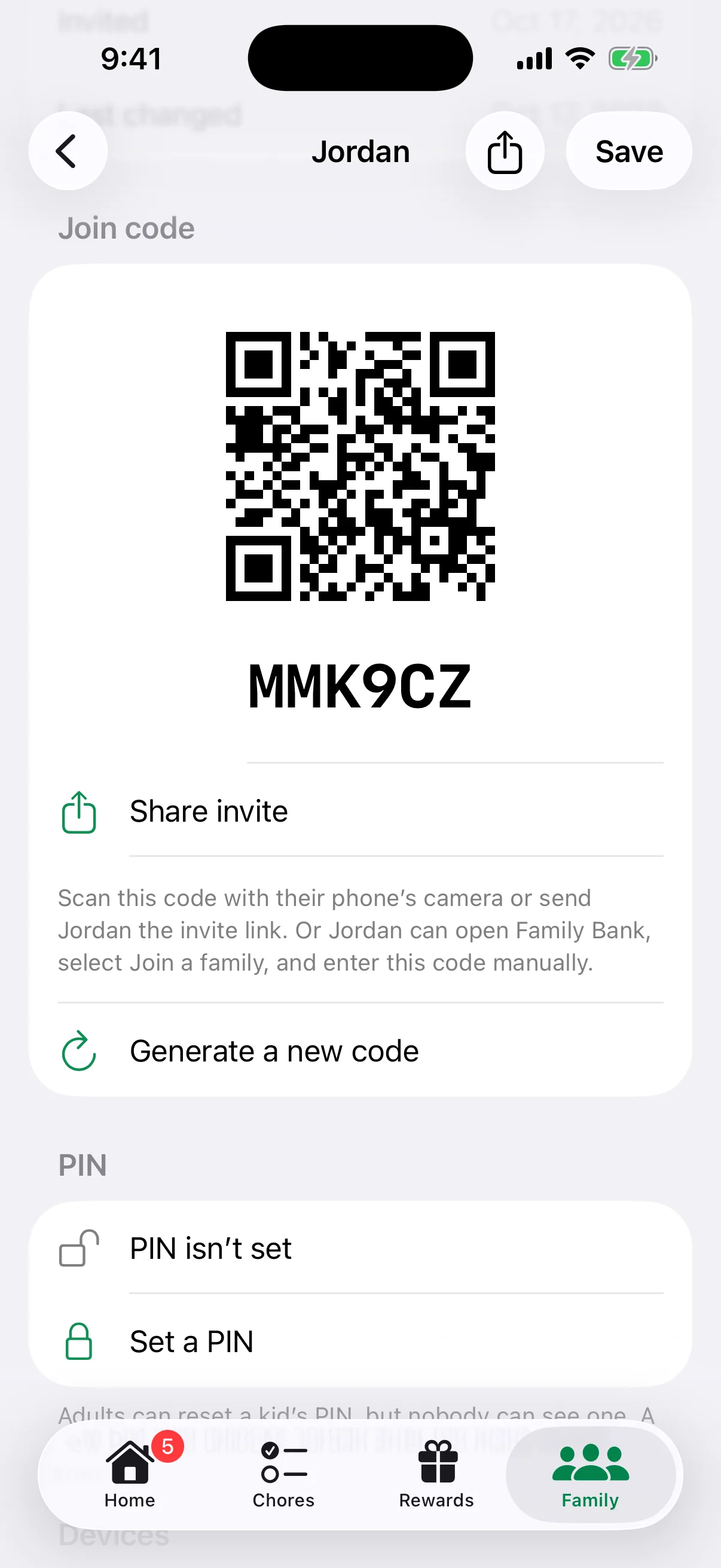
After you tap Add, Family Bank shows their 6-character join code, a QR code, and Share invite. The code also shows under their name in the Family tab. Kids show on Home as soon as you add them.
Invite them
Each person joins on their own phone with their join code. Pick whichever way is handier:
- Scan the QR code. In the Family tab, open the person. On their phone, they point the camera at the QR code and tap the link.
- Send a link. In the Family tab, open the person and tap Share invite. They tap the link, sign in with Apple, and tap Join.
- Give them the code. On their phone, they open Family Bank, sign in with Apple, choose Join a family, and enter the code.
Lost a code? Open the person in the Family tab and tap Generate a new code.
A kid without a phone
Kids don’t need their own phone or Apple Account. Add them to an iPhone your family shares, and they open their own profile there. Learn more about Shared devices
The Get started list
A new family sees a Get started list on Home, with five steps: Add your kids, Get your kids signed in, Add chores, Check the first chore, and Points and rewards. Points and rewards is optional. Each step checks itself off as your family fills in.
The list leaves Home once the first chore is paid. To bring it back, open the Family tab, tap Get started, and turn on Show on Home. To hide it sooner, open the menu in the list’s header and tap Hide from Home.